Licensing
What a Scrydon license contains, how to apply it in the setup wizard, how its status changes over time, and how to renew it
Scrydon is licensed per installation. Your license arrives as a small JSON file holding two fields: a signed JWT and a public key.
{
  "jwt":       "eyJhbGciOiJNTC1EU0EtNjUi…",
  "publicKey": "q3Vx…"
}
The JWT is signed with ML-DSA-65, a post-quantum signature scheme. The platform checks it against the Scrydon signing keys built into every release, so verification never needs a network call and there is no key to configure. The publicKey field only lets the guided installer check the file offline before installing; the platform never trusts a key that arrives with a license. The setup wizard and the license settings page reject a bare .jwt file.
What a license contains
| Claim | Meaning |
|---|---|
sub | Your customer identifier. Quote it when you contact Scrydon. |
iss | Issuer. Must be scrydon-license. |
aud | Audience. Must be scrydon-platform. |
iat | When the license was issued (Unix time). |
exp | When it expires (Unix time). |
jti | Unique license ID. |
scrydon.org | Organization name, shown in the UI. |
scrydon.orgId | Optional organization ID. |
scrydon.tier | starter, professional or enterprise. |
scrydon.entitlements.cpuCores | Licensed CPU cores for the whole platform. |
scrydon.entitlements.ramGb | Licensed RAM, in GB. |
scrydon.entitlements.vramGb | Licensed accelerator memory, in GB. Contractual; not enforced at runtime. |
A JWT that none of the built-in Scrydon keys verifies is rejected, whoever signed it, as is one with another algorithm or the wrong issuer or audience. Entitlements are compared with what your cluster actually runs by license capacity reporting.
Applying a license in the setup wizard
After a fresh install, open https://<your-host>/platform/setup. The wizard has six steps:
- License. Paste the JSON file into the text box, or drop the
.jsonfile on the upload area. The wizard reads the claims, rejects a license that has already expired, and shows the tier, organization, entitlements and days until expiry. - Admin account. Create the first administrator. The license JWT is saved to the platform database at this point, after the server checks it against the built-in keys. If the server refuses it, nothing is stored and the wizard says why, so you can upload a genuine license later under Settings → Organization → License.
- Organization. Name your first organization.
- Storage. Point it at S3-compatible or Azure object storage, or skip and configure it later at
https://<host>/platform/settings/platform/storage. - Email. Configure email delivery (SMTP by default, or Resend or SendGrid), or skip.
- Complete. Finishes setup and takes you to the platform home.
The wizard is one-shot. Once the platform is initialized, /platform/setup redirects to sign-in, and it does so too when it cannot confirm that setup is still pending.
The license lives in the platform database, next to the rest of the platform configuration. There is no Kubernetes Secret or file to mount, and it survives pod restarts, upgrades and chart reinstalls for as long as the database does.
Pre-seeding the license
To skip pasting the file, give the chart the JWT as a secret:
auth:
  secrets:
    LICENSE: "eyJhbGciOiJNTC1EU0EtNjUi…"   # the "jwt" field
The wizard's License step then opens already verified and you continue straight to the admin account. Once setup is done, the platform copies it into its database the next time it starts, if it is not there yet. From then on the database copy wins, so renew through the UI rather than by changing this secret.
Earlier releases also took auth.secrets.LICENSE_PUBLIC_KEY. A production install now ignores it, and the upgrade deletes the public-key rows it used to store. You can remove it from your values.
License modes
| Mode | What it does | Use it when |
|---|---|---|
online (default) | Verifies locally and calls license.scrydon.com once a day to check for revocation and report deployed capacity. | The cluster can reach the internet. |
offline | Verifies locally only. The chart configures no license server URL, no daily call and no egress for it, and the phone-home statuses below never apply. | Restricted or air-gapped networks. |
license:
  mode: online    # or offline
  apiUrl: https://license.scrydon.com/api/license/validate   # online mode only
The chart accepts only these two values; anything else fails the install.
How the status changes over time
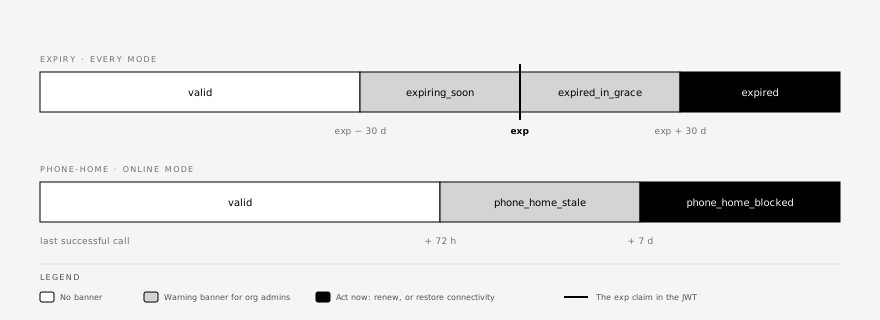
Two clocks decide the status. Whichever is worse wins.
Expiry, in every mode
| When | Status | What you see |
|---|---|---|
More than 30 days before exp | valid | Nothing. |
Within 30 days of exp | expiring_soon | A warning banner for organization admins. |
Up to 30 days after exp | expired_in_grace | A banner for organization admins, emphasised on the settings pages. The platform keeps working. |
More than 30 days after exp | expired | The same banner, until you apply a renewed license. |
The 30-day grace period is fixed. It is not configurable, and the license.gracePeriod chart value does not change it.
A license past its end date switches nothing off, in either mode. Every app, API and background job keeps running for every user, and organization admins keep full access to the platform: the banner is the only change. What an expired license cannot do is be installed. The setup wizard and Update license both refuse one.
Phone-home, in online mode
The platform keeps the time of the last successful call to the license server and compares against it. Until the first call succeeds, it counts from when the license was activated, so a new install gets the same 72 hours and 7 days:
| Time since the last successful call | Status | What you see |
|---|---|---|
| Under 72 hours | valid | Nothing. A failed call is silent. |
| Over 72 hours | phone_home_stale | A warning banner asking you to check outbound connectivity. |
| Over 7 days | phone_home_blocked | The license settings page refuses to load until a call succeeds again. |
Each call is a single HTTPS request with a 30-second timeout. A failed call leaves the last-success time unchanged, and the platform tries again after a growing delay of at most 30 minutes until a call succeeds. The banner therefore means the license server has been unreachable for 72 hours, not that a few scheduled calls happened to fail.
The daily call is scheduled 24 hours from pod start. So that neither frequent redeploys nor a database that is briefly unavailable can push it back, the platform also checks at boot and then every hour, and calls whenever the last success is more than 20 hours old. Organization admins can force an immediate call with Recheck under Settings → Organization → License, at most once every 30 seconds.
A revoked license shows the revoked status and the same banner as an expired one.
A license problem never stops running pods. Apply a valid license and the status clears on the next check, with no restart.
Inspecting a license
In the browser, before you install
The License Checker decodes a license file entirely in your browser and shows tier, organization, customer ID, entitlements and time to expiry. Nothing leaves the page, so it works during procurement or before a cluster exists.
In the platform
Settings → Organization → License shows the tier, organization, entitlements, expiry, status and last successful phone-home. It is visible to organization admins.
From the API, with the session of an admin of that organization:
curl -X POST https://<your-host>/api/auth/license/get-claims \
  -H "Content-Type: application/json" \
  -H "Cookie: <session-cookie>" \
  -d '{"organizationId":"<org-id>"}'
In code, use the auth client: client.license.getClaims({ organizationId }).
On the command line
The JWT payload is its second segment, base64url-encoded:
jq -r .jwt license.json | cut -d. -f2 | tr '_-' '/+' | base64 -d 2>/dev/null | jq .{
"sub": "cust_acme",
"iss": "scrydon-license",
"aud": "scrydon-platform",
"iat": 1735689600,
"exp": 1767225600,
"jti": "lic_abc123",
"scrydon": {
"org": "Acme Corp",
"tier": "enterprise",
"entitlements": { "cpuCores": 16, "ramGb": 64, "vramGb": 0 }
}
}base64 -d may warn about missing padding; the output is still complete. To read exp as a date: date -r 1767225600 on macOS, date -d @1767225600 on Linux.
Renewing
Your Scrydon account team sends a renewed license file before the current one expires. To apply it:
- Open Settings → Organization → License and choose Update license.
- Paste the new JSON, or drop the file.
- Save. The platform checks the new license against its built-in keys and only then replaces the current one. A refused license leaves the current one in place.
Only a platform super administrator can replace the license. Every replacement is recorded in the audit log as license.updated, with the new and previous license IDs, the customer ID, tier and expiry, never the JWT itself.
No restart is needed. The platform drops its cached license on save and reads the new one on the next request. A renewal never needs a platform upgrade. Only a new Scrydon signing key does: Scrydon ships the new key in a release first, and issues licenses under it only once that release is available to you. For the full procedure, see License rotation.
Troubleshooting
License has expired
exp has passed, so the license cannot be installed. A platform already running on it keeps running. Request a renewal from sales@scrydon.com and quote your customer identifier, the sub claim.
License is not signed by a trusted Scrydon key
None of the Scrydon keys built into this release verifies the JWT. Either the file was edited or truncated while copying (ask your account team for a fresh file and paste it whole), or it was signed under a newer Scrydon key than this release knows (the message names the key ID: upgrade the platform, or ask for a license under the current key). A license signed by anyone other than Scrydon always ends here.
phone_home_stale or phone_home_blocked in online mode
The platform cannot reach license.scrydon.com. Check that:
- your egress firewall allows outbound HTTPS to
license.scrydon.com:443; - a TLS-intercepting proxy, if any, has its CA in the pods' trust store.
Then press Recheck. If the cluster should not phone home at all, set license.mode: offline and run helm upgrade.
/platform/setup redirects to sign-in
Setup has already been completed. Sign in and manage the license under Settings → Organization → License.